How to Convert Image Format Locally
Learn when to convert TIFF, HEIC, HEIF, and AVIF images to JPG, PNG, or WebP with a private browser-based image converter.
Photos and scans can arrive as JPG, PNG, WebP, GIF, AVIF, HEIC, HEIF, or TIFF. Some apps and devices do not open every format, so converting a copy can make it easier to share or use.
like AVIF, HEIF, is the new image format, it is not supported by all devices. so you need to convert it to a common format such as JPEG or PNG.
AVIF (AV1 Image File Format) was designed to store high-quality images using less space, with suffix .avif. It uses AV1 compression and supports both lossy and lossless encoding, along with HDR, transparency, and animation. Smaller files can reduce storage needs and the amount of data downloaded by a web page.
HEIF (High Efficiency Image File Format) is used for photos on iPhones, iPads, and Macs, with suffix .heif. HEVC (High Efficiency Video Coding), also called H.265, is a video compression standard. Apple uses HEIF for photos and HEVC for videos, as explained in its guide to HEIF and HEVC media.
TIFF is common in scanning, preservation, and print workflows. The converter accepts .tif and .tiff files and exports the first page of multi-page TIFFs. It handles many common compression types; specialized TIFF variants may not decode. Like other inputs, a TIFF must be under 20 MB and 48 megapixels.
Case 1: share a photo from iOS to friends with Android Phone or Windows PC
If your friend cannot open a photo in Apple’s HEIF format on their Android phone or Windows PC, you can use our image format converter to convert it to a common format such as JPEG or PNG, then share the converted image with them.
Case 2: minimize the photo size by converting to WebP
Lossy WebP images are on average 25–35% smaller than JPEG images of visually similar compression levels. Lossless WebP images are typically 26% smaller than the same images in PNG format.
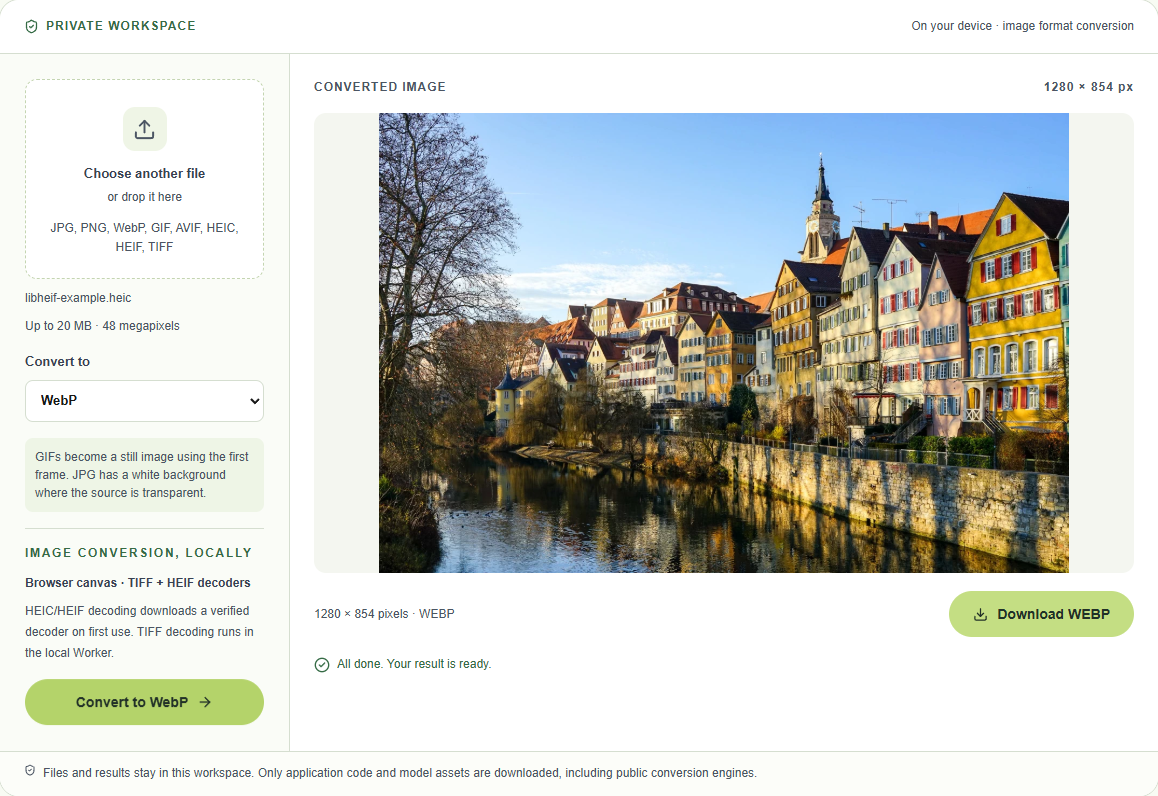
Example: convert HEIC to WebP
- Open Image Format Converter.
- Choose a HEIC image and select WebP as the output.
- Convert the image, inspect the preview, and download the WebP copy.
The converter accepts images up to 48 megapixels and 20 MB, including photos from common 48 MP high-resolution phone camera modes. Large images use more memory while converting, so closing other heavy tabs can help on phones with limited memory. 50 MP and larger images may need to be resized first.
In this example, the 718,114-byte HEIC (about 701 KiB) became a 409,604-byte WebP (about 400 KiB), a reduction of about 43%. The conversion ran in Chrome using the converter's WebP quality setting. This is the measured result for this sample; savings vary with image content, source compression, and output format.
The screenshot below shows the actual browser workspace after the conversion. The sample image comes from the libheif examples and is provided under the MIT license.